AI Image Editor
Describe a change and watch it repaint. Edit any image just by saying what should change. Swap the season, recolor a jacket, restage the whole scene. No masks, no layers.
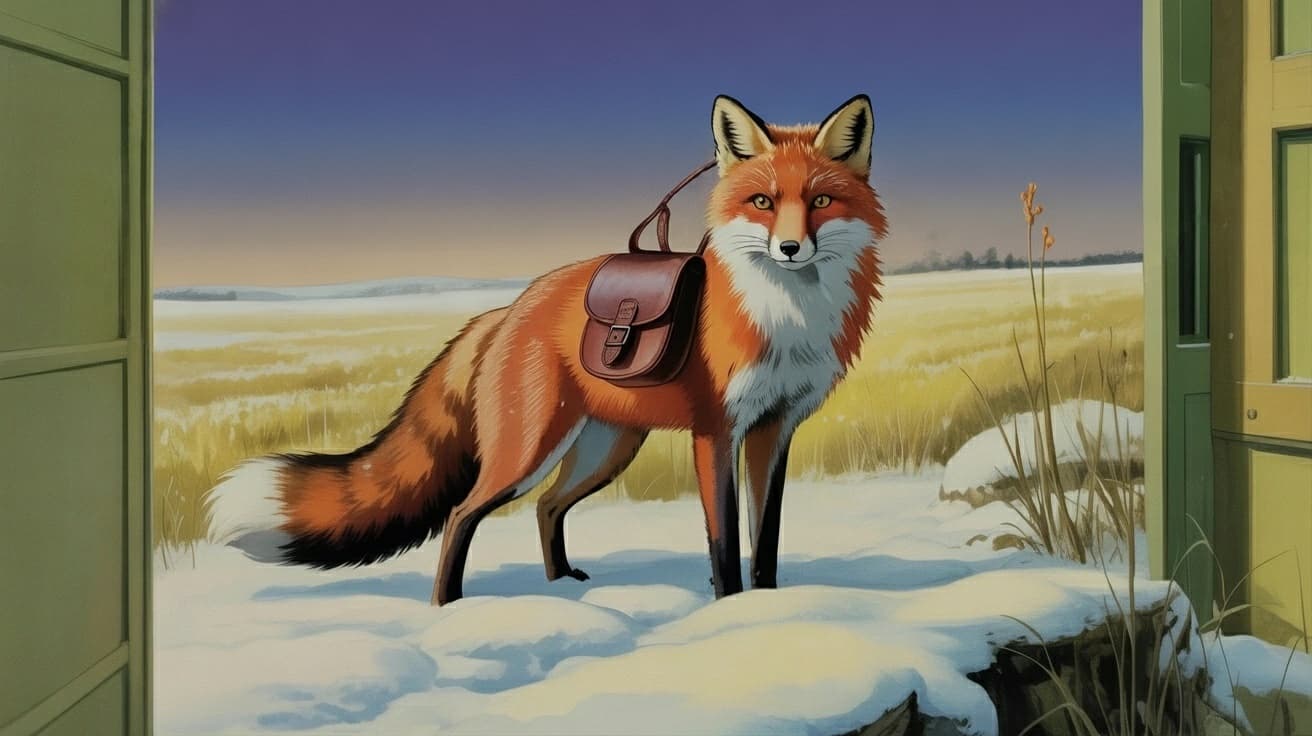
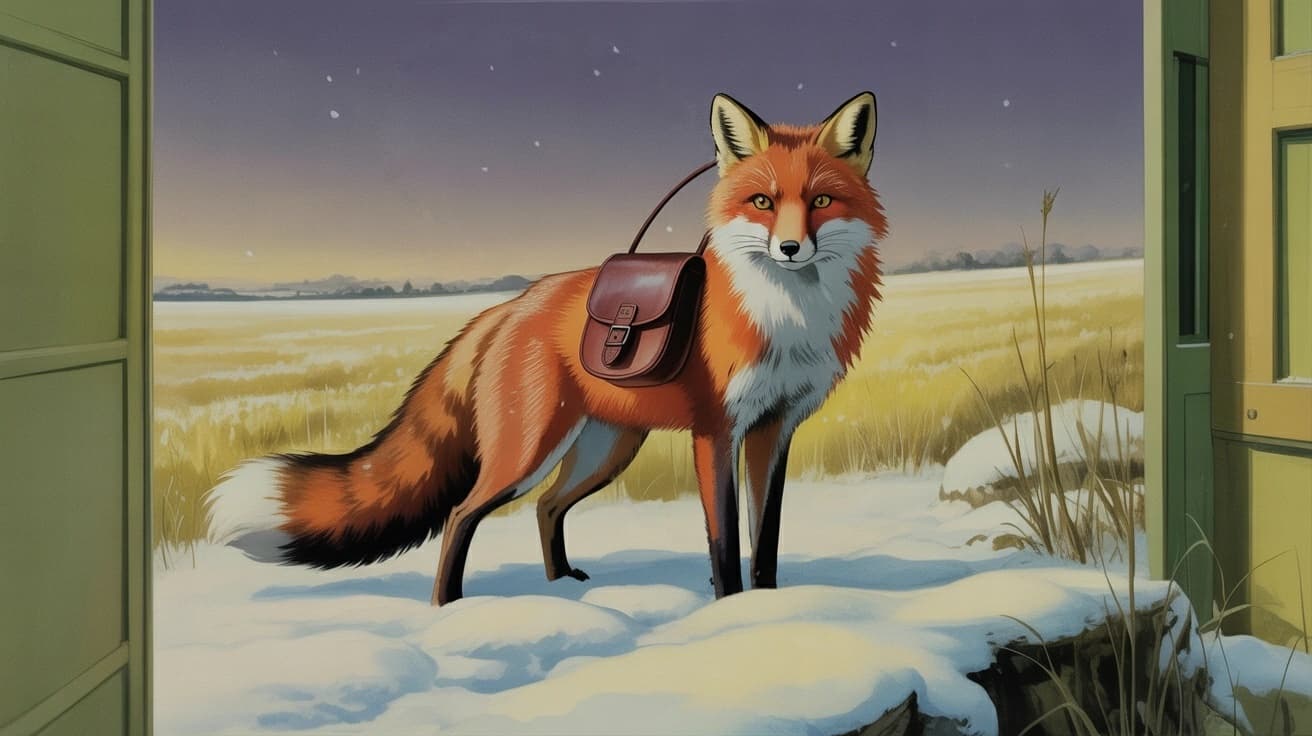
Drag to compare.
Breme edits images from a plain-language instruction: describe the change and the model repaints the frame. Edits run on current instruction-tuned editors including Seedream 5 Pro, FLUX.2 Flex, Nano Banana 2, and Qwen Image Edit, and every version is kept so you can branch or roll back.
| Models | Seedream 5 Pro, FLUX.2 Flex, Nano Banana 2, Qwen Image Edit, P-Image Edit |
|---|---|
| Control | Plain-language instruction; no masks or layers |
| Input | Generated images or your own uploads |
| History | Every version kept; branch or roll back |
Three steps, no learning curve
Upload or pick an image.
Describe the edit in plain language.
Generate and keep every version.
Common questions
Do I need to mask the area I want to change?
No. Describe the edit and the model works out what to repaint. For surgical removals there are dedicated Remove Objects and Remove Background features.
What kinds of edits can it do?
Recolor or swap objects, change weather, season, or time of day, restage a scene, adjust wardrobe, or restyle the whole image. If you can say it, the editor can attempt it.
Does it overwrite my original?
No. Each edit creates a new version alongside the original, so you can compare, branch, or return to any earlier state.

AI Image Editor, free to try
It lives inside Breme alongside every other feature, so you can make something and perfect it without leaving your project.