Remove Background
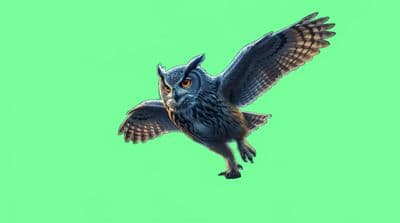
Cut the subject out, cleanly. Strip the background from any image in one step. You get a crisp transparent cut-out, ready to drop into whatever scene you like.
 Before
Drag across the image to reveal the result.
Breme removes the background from an image in one automatic step, with a choice of three specialist models: Bria, Recraft, and 851 Labs. The cut-out comes back on a transparent background or a fill of your choice, including white, green screen, blur, or any custom color.
| Models | Bria Background Removal, Recraft, 851 Labs |
|---|---|
| Detection | Automatic subject detection |
| Fill options | Transparent, white, green screen, blur, custom color |
| Output | Transparent PNG or filled background |
Three steps, no learning curve
Upload your image.
The subject is detected automatically.
Download a transparent PNG or drop in a new background.
Step-by-step guides
Common questions
Do I get a transparent PNG?
Yes. Transparent output is the default, ready to composite anywhere. You can also fill the background with white, green screen, a blur, or any custom color instead.
Do I have to select the subject myself?
No. The subject is detected automatically. If a result misses, switching to one of the other two removal models usually resolves it.
Which removal model should I use?
The default handles most images. Bria, Recraft, and 851 Labs each have different strengths on fine edges like hair and glass, so trying another model on a tricky subject takes one click.
Remove Background, free to try
It lives inside Breme alongside every other feature, so you can make something and perfect it without leaving your project.